-
Use this tool to create a lesson plan in a creative manner than can be easily understood by other teachers.
-
This article offers up suggestions on how to use Evernote, Three Ring, Google Sites, and Kidblog to create digital portfolios.
-
- Did I refer to the class as our class or my class?
- 8. If our class were a company, would it be out-of-business now?
- 9. Did students create and experience a great class or simply take a class and get credit?
- 15. Did I take advantage of spontaneous learning opportunities when students’ interests had obviously shifted, or did I maintain an inflexible mindset and vow to never deviate from an archaic lesson plan?
- 17. Was our class set up to promote creativity and collaboration or memorization and silence?
- 19. Were 21st Century skills embedded within daily assignments?
- 22. Did I gain professional wisdom by speaking to my collegial mentor?
- 24. Was the technology in my classroom used in an authentic manner? (Shannon Reed)
- 25. Did I avoid professional negativity by declining to gossip at work?
- 26. Did I manage my stress level by enjoying time with my family and friends, by exercising several times a week, by zoning out while engaged in a hobby, and by simply chilling out every once in a while?
- 28. Did I laugh often with students and colleagues?
- 31. Did I allow students to co-write their own project-based, learning contracts?
- 34. How many colleagues did I observe in-action in their classrooms this past school year?
- did I remember the names of all co-workers?
- 39. How balanced were the assignments this year in terms of requiring creativity, practical thinking, and analysis? (Adam Johnson)
- 40. Did I participate in a professional learning community outside of my school via Twitter?
- 46. Did I consistently blog as a form of professional self-reflection?
- 47. Am I a stronger teacher today than when I first stepped into the classroom at the beginning of the school year?
-
-
-
This article provides three good tech tools for teachers who want to try a back channel chat and nearly a half dozen ideas for incorporating this type of technology into the curriculum. There are even suggestions for how to use it with students as young as 6 years old.
-
- Diigo provides a free, efficient, effective and reliable way to save and organize your favorite websites, online articles, blog posts, images and other media found online.
- Diigo provides a lists feature that allows you to share carefully selected bookmarked websites with your students.
- Adding bookmarks to lists is easy. When you save the bookmark, you are able to allocate it to any list you have already created, or create a new list as you go.
- Diigo has tools that encourage students to collaborate with others to analyze, critique, and evaluate websites.
- Diigo provides opportunities for students to apply higher level thinking skills while researching and gathering information.
- Diigo allows you to gain access to the ‘collective intelligence’ of the internet.
- Use Diigo to provide visual access to websites you have collected using the built-in program ‘webslides’.
- Use Diigo’s advanced tools to link its power to blogs and RSS. Lists of similar websites that you have created can easily be posted onto a blog by using the ‘post to blog’ button.
- Use Diigo tools to enhance professional reading and save time creating summaries of online posts.
-
- Access your information from any computer, or even your iPhone or iPad!
-
Showing posts with label videos. Show all posts
Showing posts with label videos. Show all posts
Tuesday, May 27, 2014
Educational Resources & Tech Tools 05/28/2014

Tuesday, April 15, 2014
Educational Resources & Tech Tools 04/16/2014
-
Interesting videos and worksheets on topics relevant to teens.
Tuesday, April 8, 2014
Educational Resources & Tech Tools 04/09/2014
-
This tech tool allows teachers to write out questions for students to respond to with videos. This would be a great resource in a foreign language classroom.
Wednesday, March 19, 2014
Educational Resources & Tech Tools 03/20/2014
-
An approach to organizing research that's an alternative to note cards.
Thursday, March 13, 2014
Educational Resources & Tech Tools 03/14/2014
-
Maps that span social and historical timelines.
-
This software allows you to pull videos from a variety of sites and then embed questions that can take the form of multiple choice, free response or even audio files.
-
"Resources On This Page: Lesson Plans & Rubric - Reteach and Enrich Tools for Data Assessment Culture Websites & Readings"
Tuesday, September 24, 2013
Embedding Videos
If you are still linking videos from a website, consider embedding them. When you embed a video, it shows up right on the page where you have placed the code. People visiting your page will be able to see the video in context without being directed away from that page and without having to open another window. Here are two ways to embed a video. You can either use YouTube or Google Drive.
Directions for Google Drive:
If you own the video (meaning you made it) and you do not wish to use YouTube as the host (perhaps you don't want any ads associated with your video), consider uploading it to Google Drive. Here's how to do that:





Directions for Google Drive:
If you own the video (meaning you made it) and you do not wish to use YouTube as the host (perhaps you don't want any ads associated with your video), consider uploading it to Google Drive. Here's how to do that:
- Log on to Google Drive, click on the upload button (it's the red arrow pointing up and it's next to the Create button on the left side of the screen).

- Select your video to upload.
- Once the video is uploaded, select it and click on the Share button to change viewing access from Private to Public if you want to host it on a blog or website.
- Right-click on the uploaded video file and select Open with – Google Drive Viewer.
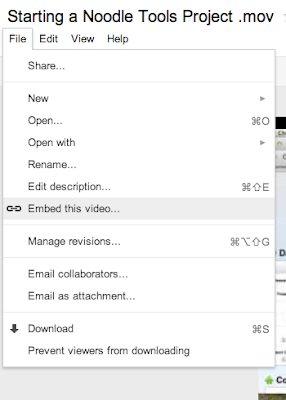
- Once it opens, click on the file menu in the top left corner and select embed this video.

- Copy and paste the code into the HTML view of your website.

Directions for YouTube:
- Once signed in on YouTube (use your Google sign in), click on the upload button.

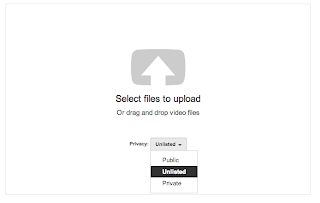
- Change the privacy setting to Unlisted and the either drag your video into the upload box or select it from the browser menu.

- Click on the video link

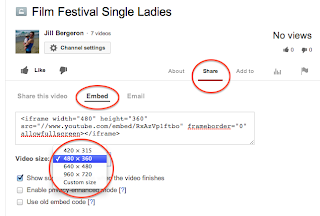
- Look for the Share button below the video and click there. Then choose embed. From here you can select how big you wish your video to be. If you click on "custom" you can specify the exact size of your video.

- Paste that code into the HTML view of your website.

Subscribe to:
Posts (Atom)