-
"What if Andy Warhol had it wrong, and instead of being famous for 15 minutes, we're only anonymous for that long? In this short talk, Juan Enriquez looks at the surprisingly permanent effects of digital sharing on our personal privacy. He shares insight from the ancient Greeks to help us deal with our new "digital tattoos.""
-
This extension prevents inappropriate videos from appearing on screen while you are showing students appropriate videos.
Showing posts with label YouTube. Show all posts
Showing posts with label YouTube. Show all posts
Monday, May 19, 2014
Educational Resources & Tech Tools 05/20/2014

Tuesday, May 6, 2014
Educational Resources & Tech Tools 05/07/2014
-
- According to Code.org, 90 percent of U.S. schools are not teaching any computer science. Eyebrows have been raised this year as the U.K. passed a plan to educate every child how to code (3).
-
Tuesday, April 22, 2014
Educational Resources & Tech Tools 04/23/2014
-
Commonly used scripts for Google Drive.
-
Three activities you can implement tomorrow.
Monday, March 17, 2014
Educational Resources & Tech Tools 03/18/2014
-
Math tutorial channels.
-
Good for American history and modern world history as well as Western Civ.
Thursday, March 13, 2014
Educational Resources & Tech Tools 03/14/2014
-
Maps that span social and historical timelines.
-
This software allows you to pull videos from a variety of sites and then embed questions that can take the form of multiple choice, free response or even audio files.
-
"Resources On This Page: Lesson Plans & Rubric - Reteach and Enrich Tools for Data Assessment Culture Websites & Readings"
Wednesday, January 29, 2014
Tuesday, January 21, 2014
Educational Resources & Tech Tools 01/22/2014
-
Flip teaching tool that allows you to create interactive lessons. Check out their intro video as well as their archive of educational lessons.
-
STEM skills being practiced aren't just related to the subjects- collaboration and creative problem solving are big ones.
Wednesday, December 11, 2013
Educational Resources & Tech Tools 12/12/2013
-
Options for teachers looking for relevant classroom YouTube videos.
-
Great article on differentiation.
-
Top math blogger in US.
-
Great math resources for MS math teachers. Coincidentally put together by MS math teacher.
Wednesday, December 4, 2013
Educational Resources and Tech Tools 12/05/2013
-
Great videos for explaining abstract concepts with tangible drawings.
-
Free math resources with some decent looking lessons that can be sorted by grade level or concept.
-
Create interactive visuals for class projects.
Parent CATIE 12/3/13
Yesterday, Chandler School hosted its third Parent CATIE (Conversations About Technology In Education) forum. As a school with a one to one laptop program, we seek to educate all members of our community in the best uses of technology. To that end, we invited parents to join us for a session on safety and social media. We opened the session with a light-hearted video of Louis CK discussing the overwhelming urge to use technology because you can! We then moved into a survey where we asked the parents to think like their children and answer four questions on how kids use social media. We then compared the responses of the parents with those of the students. Turns out, parents do know their kids! Based on the information provided to us by the students, we then went over how to set safety filters on YouTube and discussed how children, and teens in particular, are using SnapChat and Instagram. Below is material we covered with links included.
Social Media Tips
Social media safety
YouTube
5 Ways to Keep YouTube Safe and Fun for Kids
- Enable YouTube Safety Mode
- Use Internet Filters
- Keep the Computer Public
- Speak With Your Kids
Snapchat (for use on mobile devices only)
- Sexting information via Common Sense
Instagram
- hashtags (#somuchfun)
Social Media Tips
Tuesday, September 24, 2013
Embedding Videos
If you are still linking videos from a website, consider embedding them. When you embed a video, it shows up right on the page where you have placed the code. People visiting your page will be able to see the video in context without being directed away from that page and without having to open another window. Here are two ways to embed a video. You can either use YouTube or Google Drive.
Directions for Google Drive:
If you own the video (meaning you made it) and you do not wish to use YouTube as the host (perhaps you don't want any ads associated with your video), consider uploading it to Google Drive. Here's how to do that:





Directions for Google Drive:
If you own the video (meaning you made it) and you do not wish to use YouTube as the host (perhaps you don't want any ads associated with your video), consider uploading it to Google Drive. Here's how to do that:
- Log on to Google Drive, click on the upload button (it's the red arrow pointing up and it's next to the Create button on the left side of the screen).

- Select your video to upload.
- Once the video is uploaded, select it and click on the Share button to change viewing access from Private to Public if you want to host it on a blog or website.
- Right-click on the uploaded video file and select Open with – Google Drive Viewer.
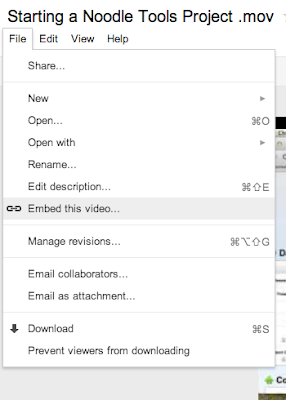
- Once it opens, click on the file menu in the top left corner and select embed this video.

- Copy and paste the code into the HTML view of your website.

Directions for YouTube:
- Once signed in on YouTube (use your Google sign in), click on the upload button.

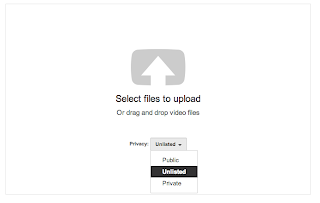
- Change the privacy setting to Unlisted and the either drag your video into the upload box or select it from the browser menu.

- Click on the video link

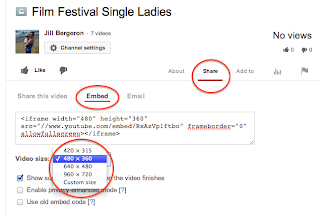
- Look for the Share button below the video and click there. Then choose embed. From here you can select how big you wish your video to be. If you click on "custom" you can specify the exact size of your video.

- Paste that code into the HTML view of your website.

Subscribe to:
Posts (Atom)